Network Events
The Network Events page displays the signal quality and roaming events. The page includes the following information:
Signal Quality Timeline Graph
In this graph, view the RSSI value within the timeline, with horizontal color lines to separate the quality group classification (Ideal, Good, Middle-Lower, Lower). Values are here represented by a scale from 0 to -80 RSSI -it should be noted that the range of values represented may vary between different device manufacturers and are not completely standardized:
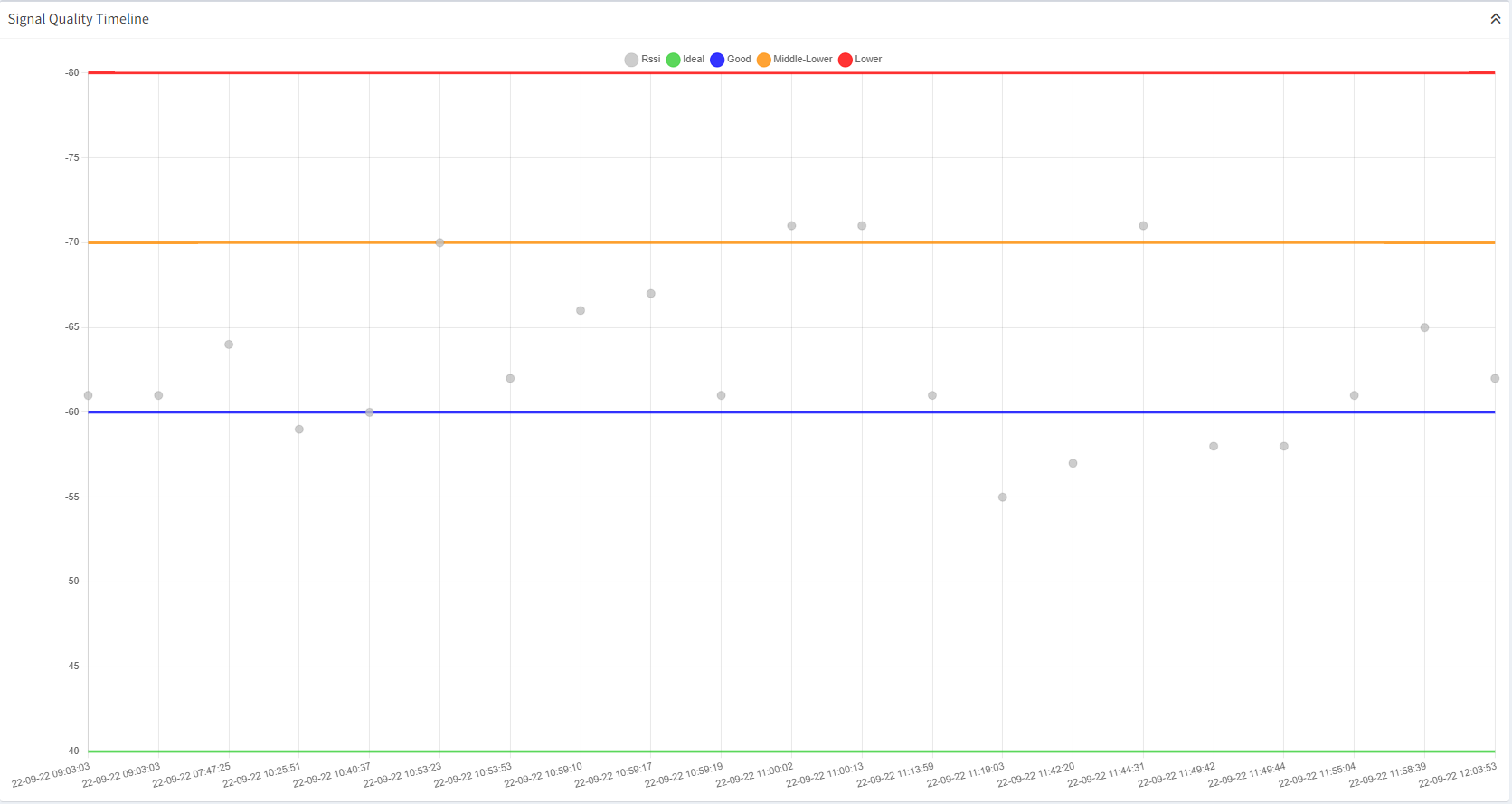
Signal Quality Timeline Graph
Signal Quality Summary Table and Graph
This graph shows the summarized info from the previous graph:
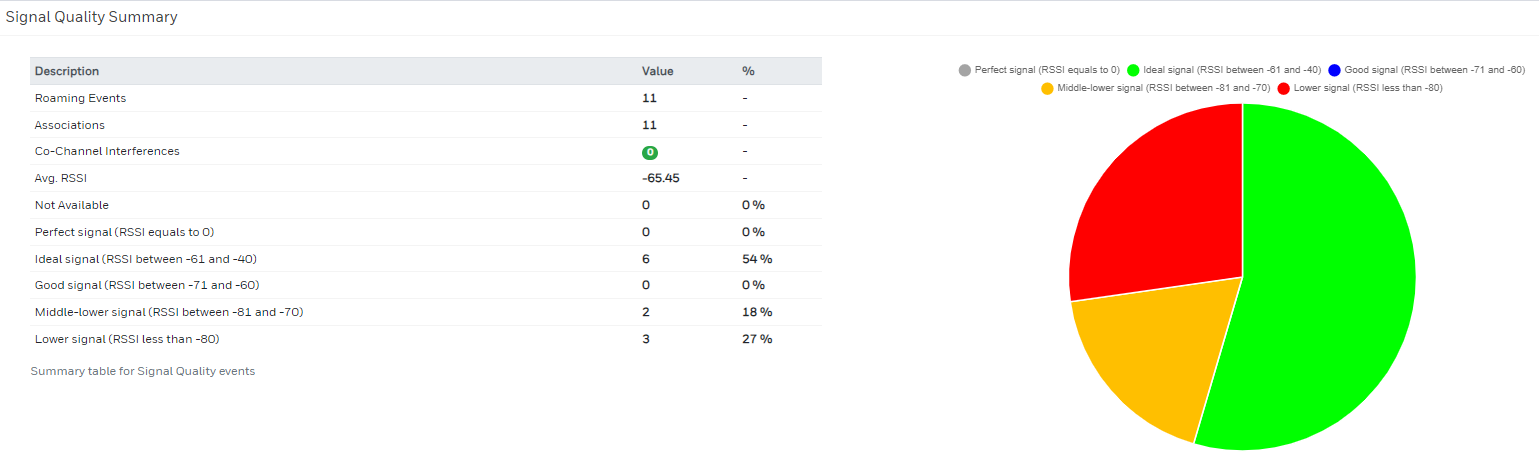
Signal Quality Summary Table and Graph
Signal Quality Summary per AP
A table displays each roamed Access Point with a signal quality average value and the number of samples used to calculate it:

Signal Quality Summary Table
Roaming Timeline Graph
This graph shows the roaming events in a timeline:
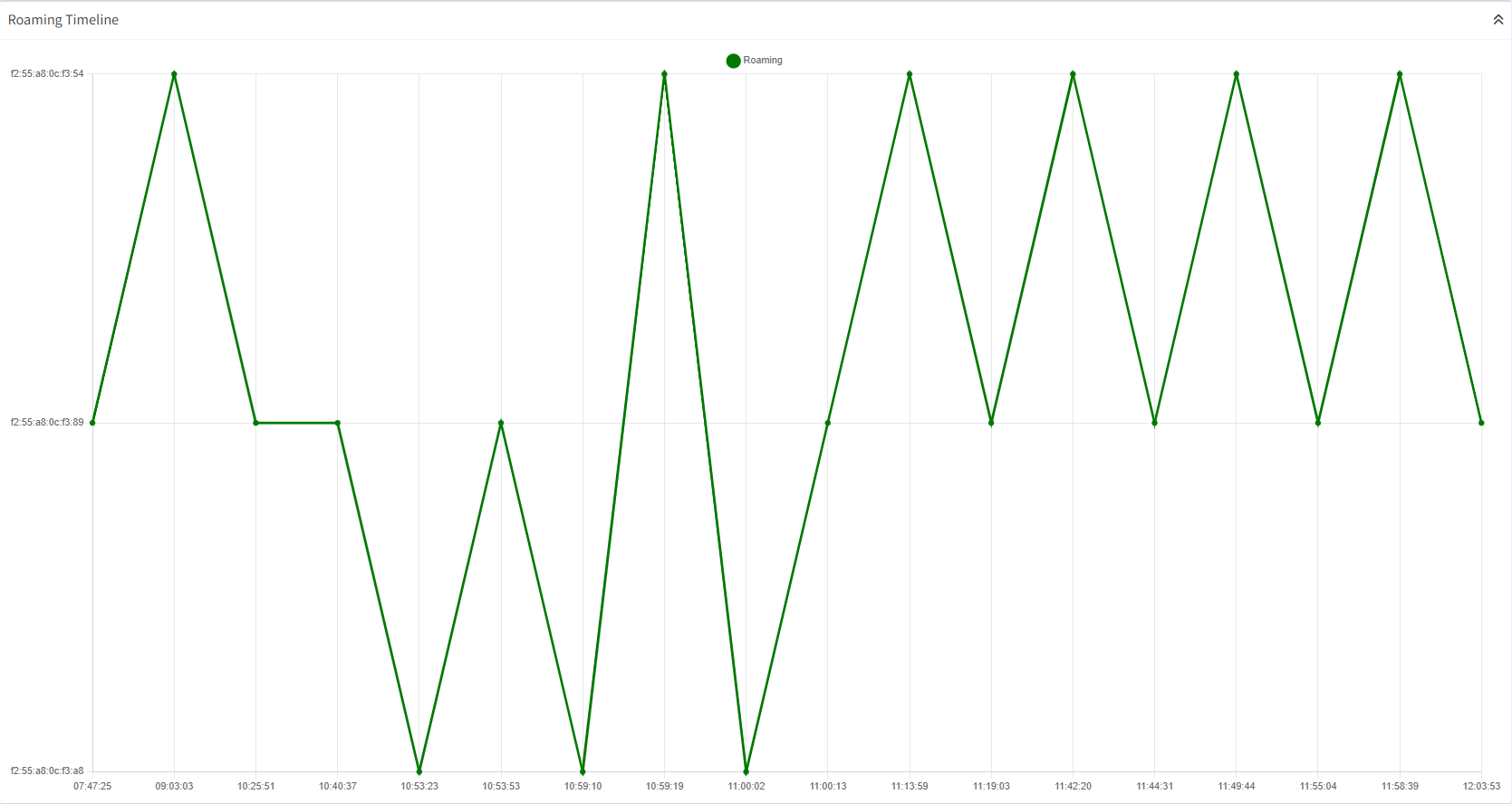
Roaming Timeline Graph
Roaming List
This list shows all registered network events ordered on the timeline, showing the network event date and time, status, destination AP, channel, and RSSI value for each event. Depending on the event, the Status shown in the list can be:
- Associating Status: This information indicates that the device is attempting to associate with another AP, with the indicated RSSI channel and signal strength (white lines in the roaming list).
- Connected Status: This information indicates that the device has successfully connected to a new Access Point (green lines in the roaming list).
- Errors: Point out whether errors have been detected in the roaming process (red lines in the roaming list).
- Co-Channel interferences: If there are two or more attempts to connect to different Access Points (APs) using the same channel within a time frame of 2 seconds or less, these lines are shown as red lines. This indicates the presence of co-channel interference.
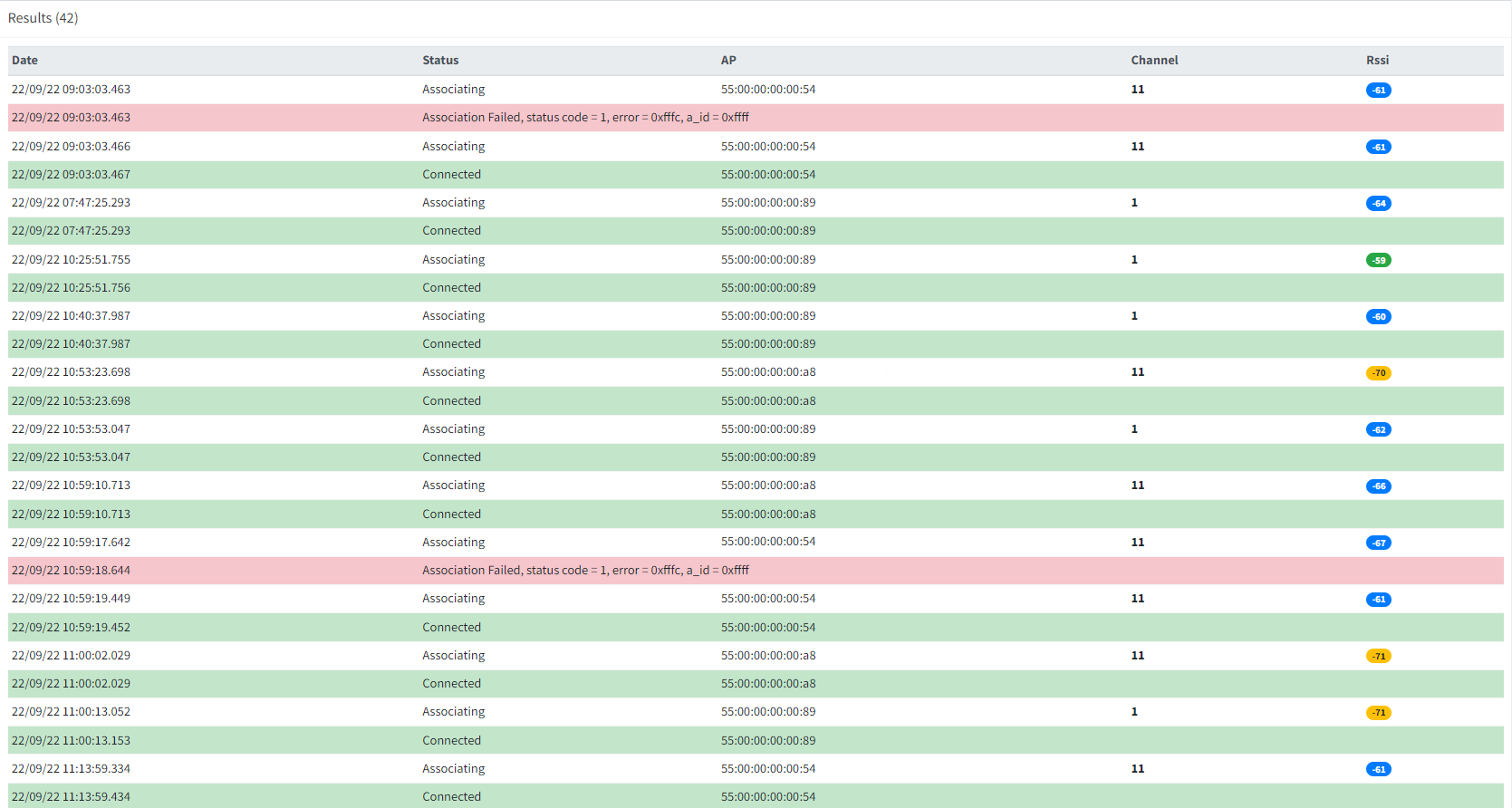
Roaming List
In the Network Events Filter section, select the filters by:
- entering local dates and times
Next click the Find button or press Enter.
Filters can be removed by clicking the Clear and Find buttons in that order.

Network Events Filter Panel