Headset Functions and LED Patterns for SRX2/SRX3
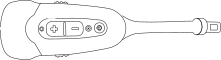
Headset Function
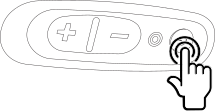
Power on
User Action
Press Power button for half a second
Headset Mode
Headset powers up in low power pairing mode
LED Pattern
Solid green

Tone
High pitch double beep
Power off
User Action
Hold Power button for one second
Headset Mode
Headset powers off
LED Pattern
Solid green,
then off

Do not remove the battery until the LED is off.
Tone
Low pitch double beep
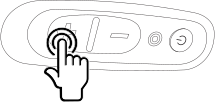
Increase volume
User Action
Press the Plus (+) button
Headset Mode
N/A
LED Pattern
N/A
Tone
Two tone ascending sequence. If connected, device says, "louder."
When using the headset with Guide Work, only the tones are played.
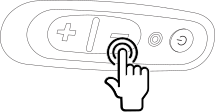
Decrease volume
User Action
Press the Minus (-) button
Headset Mode
N/A
LED Pattern
N/A
Tone
Two tone descending sequence. If connected, device says, "softer."
When using the headset with Guide Work, only the tones are played.
Mute
This applies to the SRX3 Headset only. This feature is not available on the SRX2 Headset.
User Action
Flip microphone boom up 90 degrees (vertical)
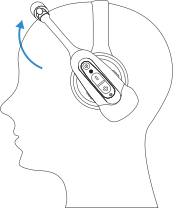
Headset Mode
N/A
LED Pattern
N/A
Tone
N/A
Unmute
This applies to the SRX3 Headset only. This feature is not available on the SRX2 Headset.
User Action
Flip microphone down to mouth level.
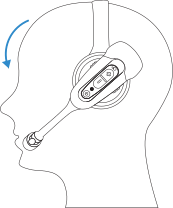
Headset Mode
N/A
LED Pattern
N/A
Tone
N/A
Force disconnect for manual pairing in low power mode
User Action
With headset connected, press the Plus (+) and Minus (-) buttons
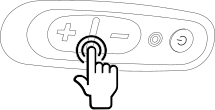
Headset Mode
Headset disconnects current pairing and enters low power pairing mode
LED Pattern
Solid green
Tone
No tone when entering mode. Three ascending tones upon pairing with a device
Switch to high power pairing when pairing in low power mode has failed
User Action
With headset in pairing mode, press the Plus (+) and Minus (-) buttons
Headset Mode
Headset enters high power pairing mode
This mode is recommended only if low power pairing fails.
Honeywell does not recommend this pairing mode for Talkman devices. This mode greatly increases the likelihood that your headset pairs with the wrong device.
LED Pattern
Rapid flash

then solid green
Tone
No tone when entering mode. Three ascending tones upon pairing with a device
Normal operation, paired and connected
User Action
N/A
Headset Mode
Headset connected as a slave device
LED Pattern
Slow flashing blue (on 25%, off 75%)

Tone
Three ascending tones upon connecting to master device
Paired but connection dropped, possibly out of range
User Action
N/A
Headset Mode
Headset connectable but not discoverable.
Any Bluetooth device can connect if it
knows the headset's address.
LED Pattern
Slow flashing green (on 25%, off 75%)
Tone
Three descending tones when the connection to the master device is dropped
Update headset software
User Action
Connect headset to computer running Honeywell Accessory Update Utility (HAUU)
HAUU V3.0 or later is required for the SRX3 Headset and recommenced for all accessory updates.
Headset Mode
Device update
LED Pattern
Solid blue when plugged in

Off during update
returns to solid blue when update complete
Tone
N/A